Chatbots
Users with Chatbot read access but no write access can inspect configuration, but cannot change AI knowledge, memory, tools, or settings.
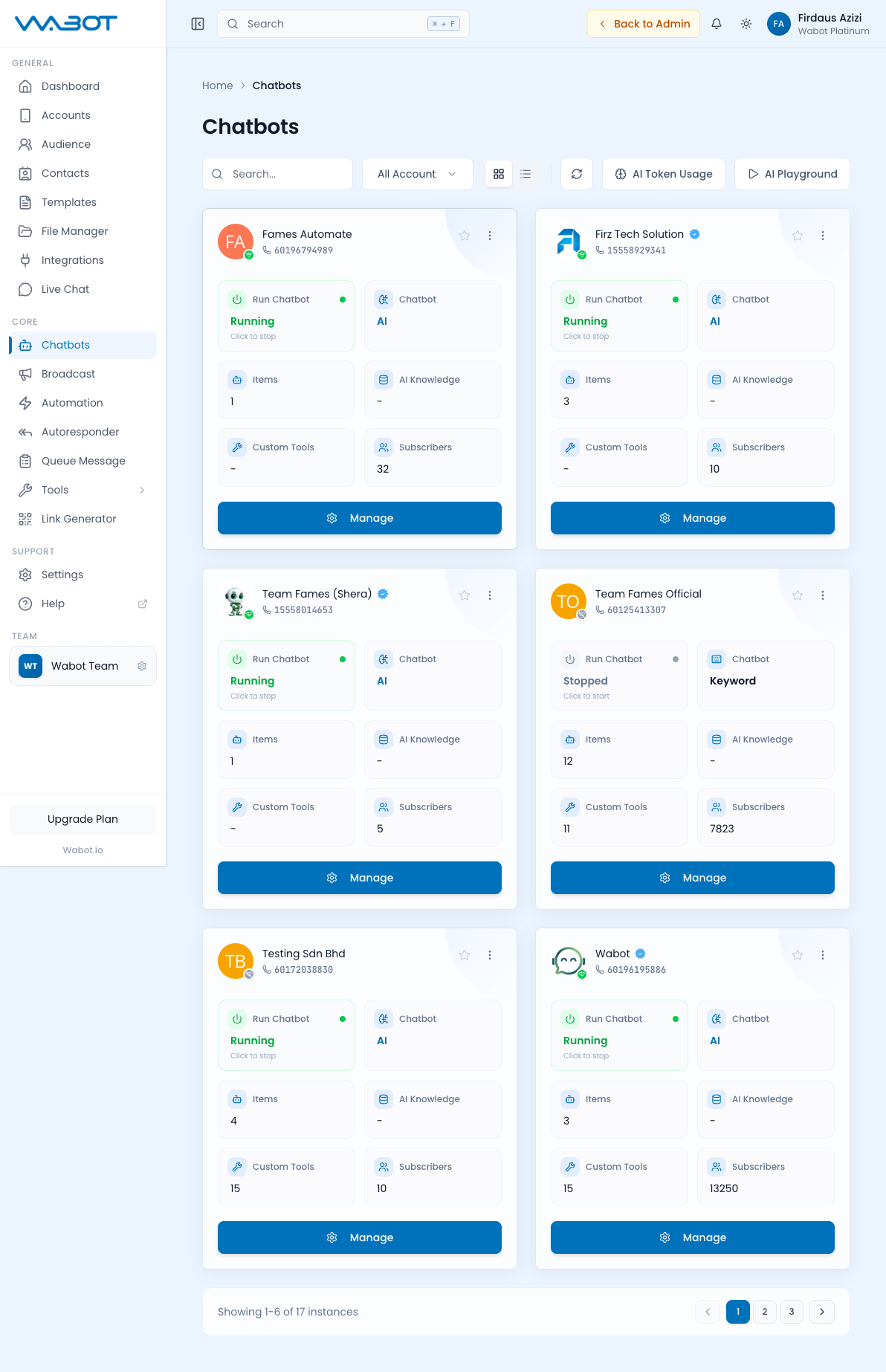
Wabot Chatbots are AI-powered assistants that handle customer conversations on your WhatsApp number 24/7. They understand context, respond to text/images/voice, remember user details across sessions, and seamlessly hand off to a human when needed.
Where to Find It
Sidebar → CORE → Chatbots — https://app.wabot.io/dashboard/chatbots
Set Up Your First AI Chatbot
Use this sequence for a safe first launch:
- Connect the WhatsApp account the chatbot will use.
- Go to CORE → Chatbots and select that account.
- Open Configure Setting and choose AI mode.
- Write the AI Role Guide / Persona: business name, supported languages, products or services, tone, rules, and when to hand over to a human.
- Enable the required AI features, such as knowledge, memory, voice transcription, or vision.
- Add and wait for processing of the knowledge files the bot should use.
- Configure human-transfer conditions and an escalation destination.
- Test the behavior in AI Playground with realistic customer questions.
- Publish or save the reviewed configuration, then monitor feedback gaps and Live Chat conversations after launch.
Begin with a focused use case, such as product FAQ or lead qualification. Add new instructions and knowledge only after testing them. A smaller, clear persona is easier to validate than an unrestricted bot.
Chatbot Instance (Summary Page)
When you click on a connected account, you land on the Chatbot Summary page. This is your command center for a single WhatsApp number's chatbot:
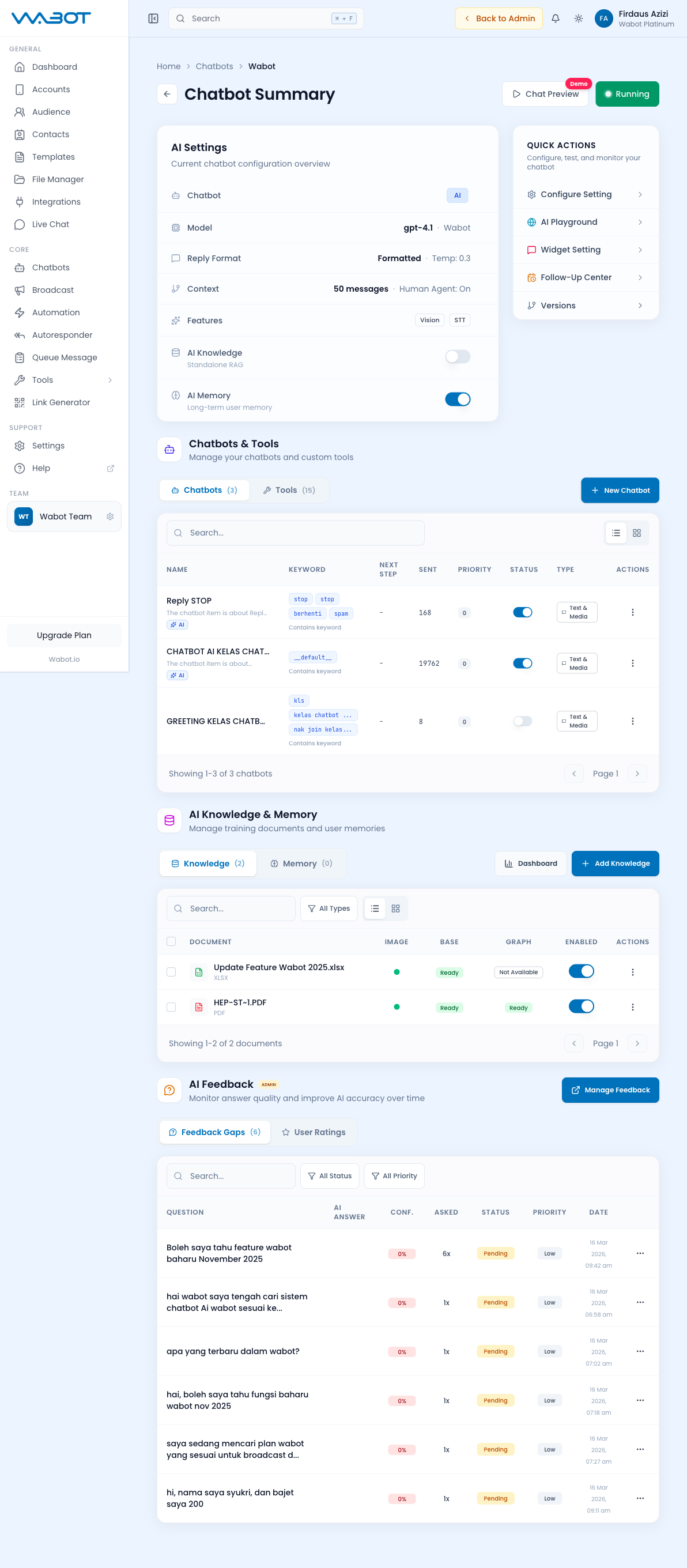
The summary page is divided into four main sections:
AI Settings Overview
At the top, you see a quick overview of the current chatbot configuration:
| Setting | Description | Example |
|---|---|---|
| Chatbot | AI or Keyword mode | AI |
| Model | LLM model in use | gpt-4.1 · Wabot |
| Reply Format | How replies are formatted | Formatted · Temp: 0.3 |
| Context | Conversation history length | 50 messages · Human Agent: On |
| Features | Enabled AI capabilities | Vision, STT |
| AI Knowledge | RAG knowledge base | Standalone RAG (on/off) |
| AI Memory | Long-term user memory | On/Off |
Quick Actions
The summary page provides fast access to:
- Configure Setting — Full AI configuration panel
- AI Playground — Test chatbot in a sandbox
- Widget Setting — Embeddable web chat widget
- Versions — Chatbot version history
Follow-ups are now managed from Audience Hub → Follow-Up Center. The legacy chatbot-instance follow-up route redirects there.
Start or Stop a Chatbot Account
From the main Chatbots list:
- Find the account by name, phone number, or filter.
- Check its current Run Chatbot status.
- Use the status control to start or stop chatbot processing for that account.
- Open Manage to change its rules, AI configuration, tools, knowledge, and versions.
- Test the new behavior in AI Playground before enabling it for customer conversations.
Chatbots & Tools
- Chatbots Tab
- Tools Tab
Lists all chatbot items (rules) for this account. Each chatbot item has:
| Column | Description |
|---|---|
| Name | Chatbot rule name (e.g. "Reply STOP", "CHATBOT AI KELAS") |
| Keyword | Trigger keywords or __default__ for catch-all |
| Next Step | Chained chatbot item (if any) |
| Sent | Total messages sent by this rule |
| Priority | Execution priority (lower = higher priority) |
| Status | Enable/disable toggle |
| Type | Text & Media, or other types |
Click New Chatbot to create a new rule.
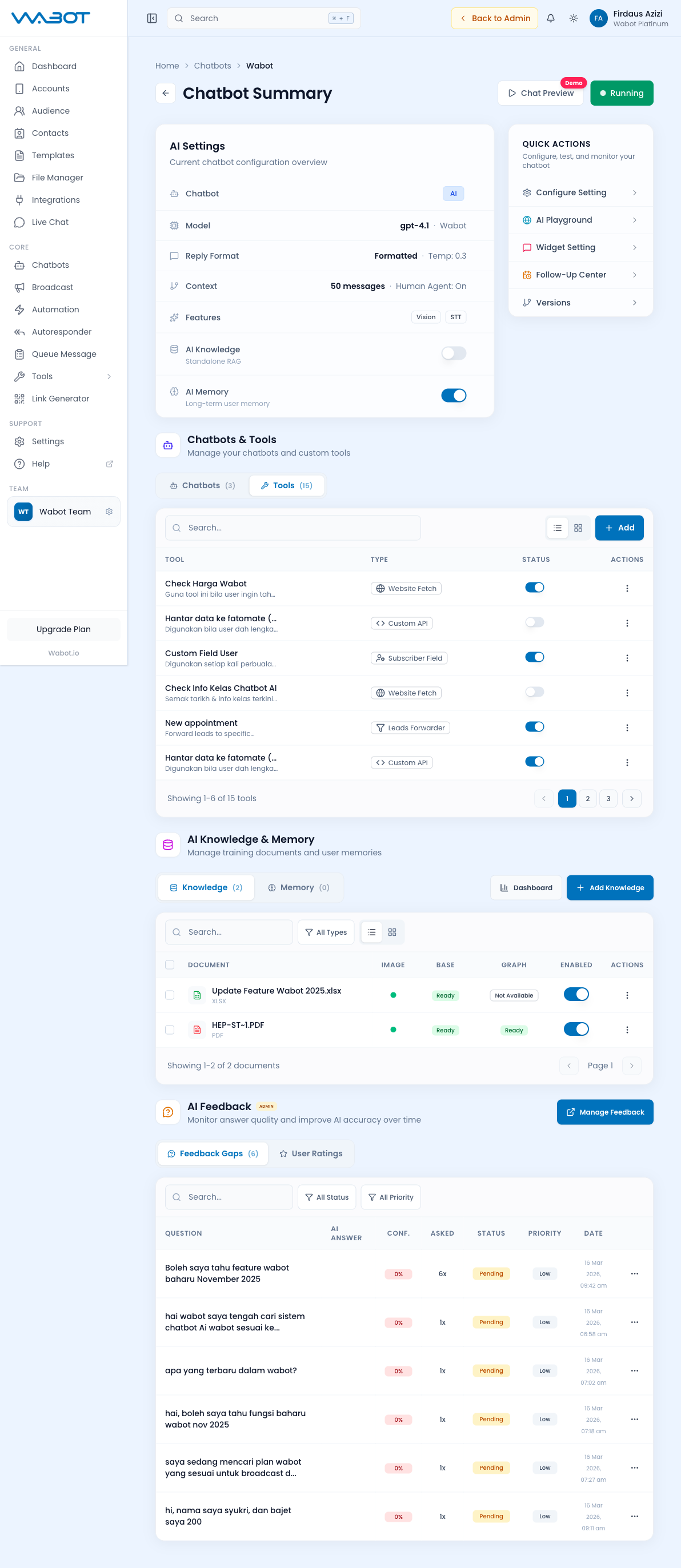
Custom tools that the AI chatbot can invoke during conversations. Tool types include:
Availability varies by tool type, plan, and permission. A tool can be premium-locked, marked Coming Soon, or show Feature Under Development; do not configure a workflow around it until its form is available for the selected account.
For example, the Calendar tool is marked Coming Soon until Google Calendar access is enabled for the workspace.
| Tool Type | Description |
|---|---|
| Website Fetch | Fetch live data from a URL (e.g. class schedules) |
| Custom API | Call external APIs via webhook (e.g. registration) |
| Subscriber Field | Update contact custom fields |
| Leads Forwarder | Forward leads to specific WhatsApp numbers |
AI Knowledge & Memory
Manage training documents and user memories:
- Knowledge tab — Upload PDF, XLSX, DOCX, TXT files. Each document shows Base (ready/processing) and Graph (ready/not available) status.
- Memory tab — View stored user memories across conversations.
- Add Knowledge — Upload new documents.
- Dashboard — Knowledge analytics overview.
Version History
Use Versions before making a major prompt, model, or knowledge change:
- Open Versions from the chatbot summary.
- Record what you are changing and why.
- Compare the available saved configurations.
- Restore a known-good version when a new configuration produces poor results.
AI Feedback
Monitor chatbot answer quality:
- Feedback Gaps — Questions the AI couldn't answer confidently (0% confidence), with status (Pending/Resolved), priority, and frequency count.
- User Ratings — Direct feedback from users on AI responses.
Configure Chatbot (AI Settings)
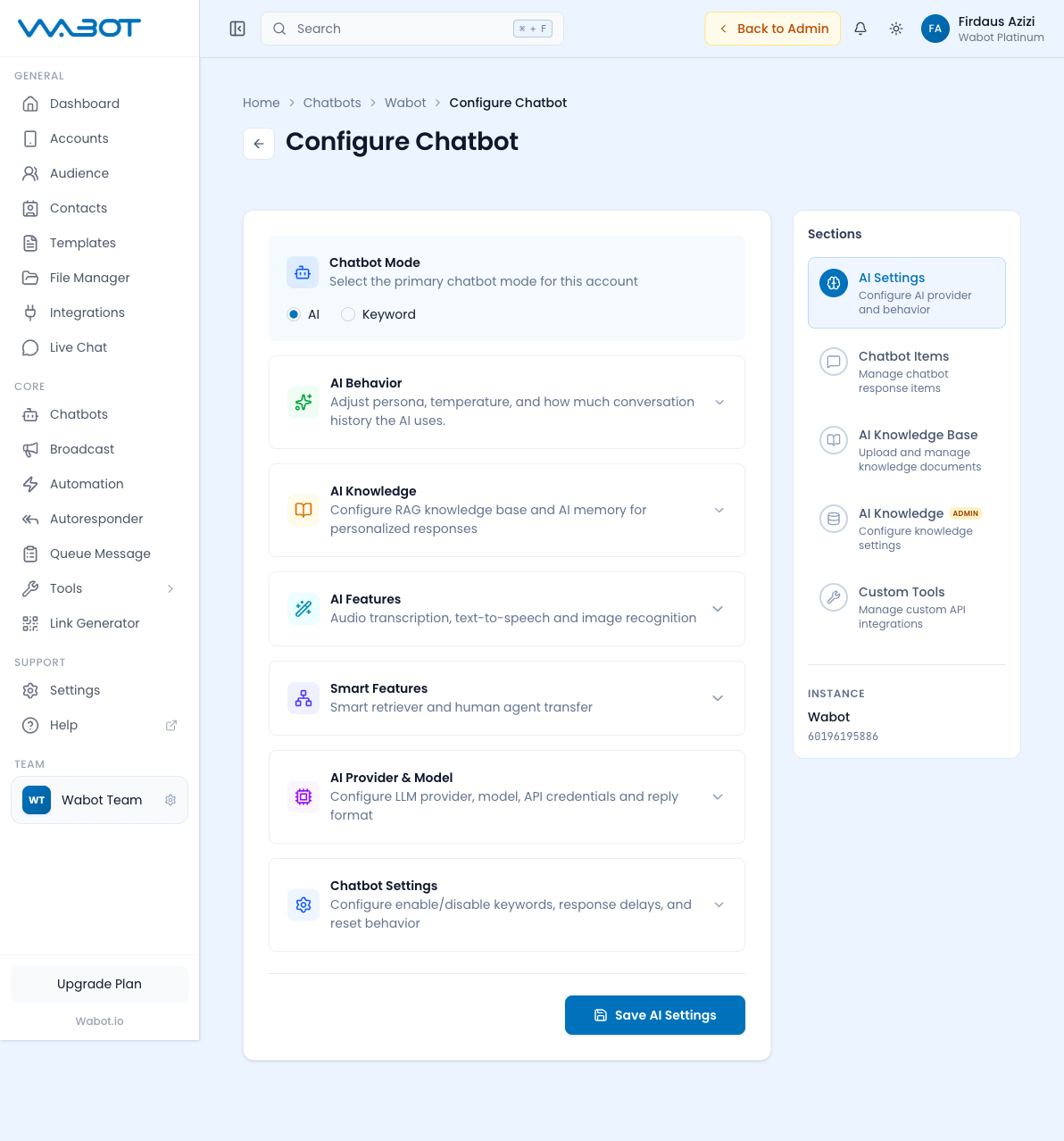
Click Configure Setting to open the full configuration panel. This is where you fine-tune every aspect of your chatbot's behavior.
1. Chatbot Mode
Choose the primary mode:
- AI — Full AI-powered responses using LLM (GPT-4.1, etc.)
- Keyword — Traditional keyword-matching auto-replies only
2. AI Behavior
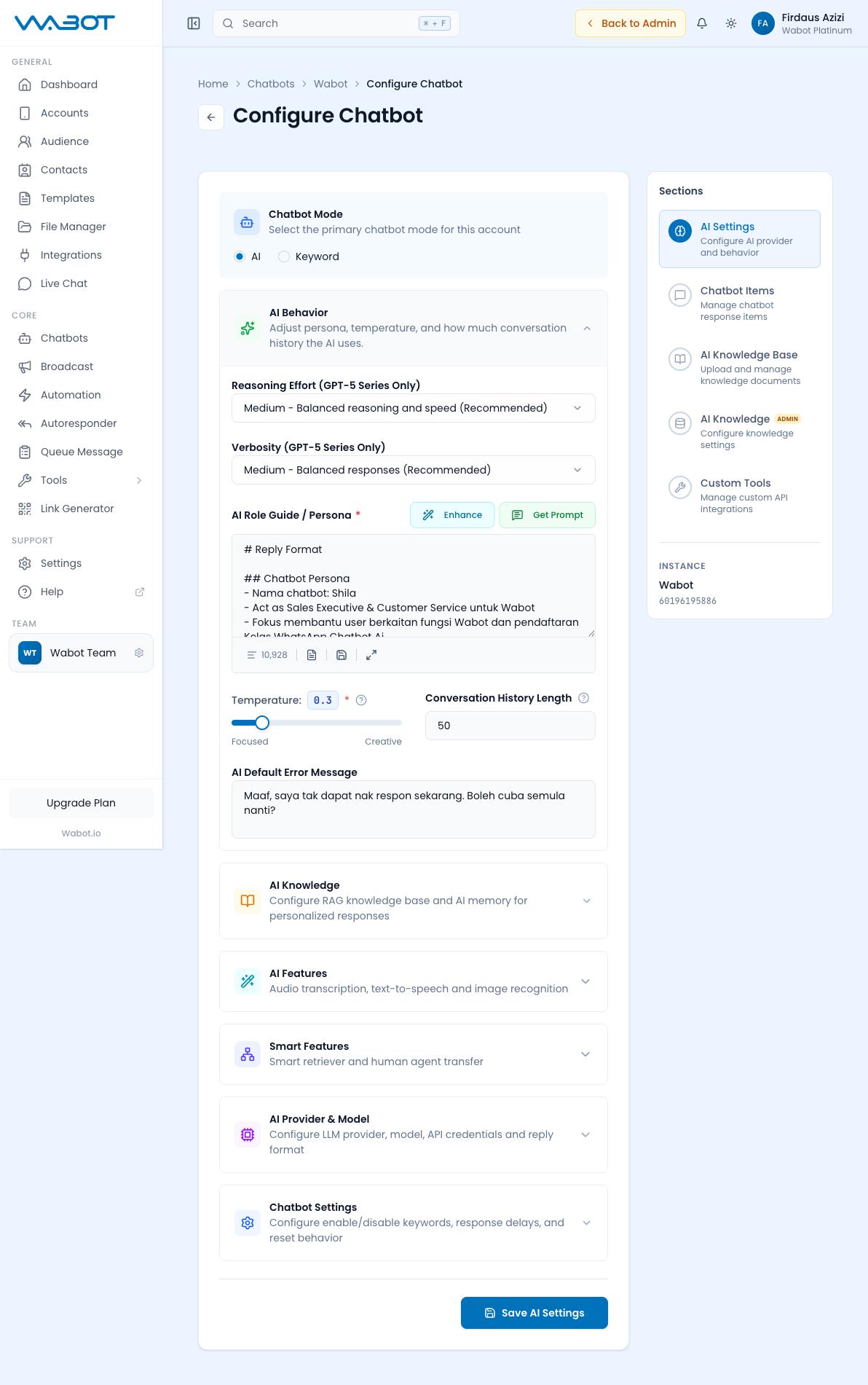
Controls how the AI thinks and responds:
| Setting | Description | Default |
|---|---|---|
| Reasoning Effort | GPT-5 series only — Low/Medium/High reasoning depth | Medium |
| Verbosity | GPT-5 series only — Response length control | Medium |
| AI Role Guide / Persona | System prompt defining the bot's personality, rules, constraints, and conversation flows | Custom per bot |
| Temperature | Creativity vs focus (0.0 = focused, 1.0 = creative) | 0.3 |
| Conversation History Length | Number of previous messages the AI considers | 50 |
| AI Default Error Message | Fallback message when AI fails to respond | Custom |
The Persona field supports:
- Enhance button — AI-assisted prompt improvement
- Get Prompt — Load a pre-built prompt template
- Select Caption — Choose from saved captions
- Character counter (e.g. 10,928 characters)
- Expand editor — Full-screen editing
- Define a clear name and role (e.g. "Shila — Sales Executive")
- Set language rules (default BM, switch to EN if user starts in EN)
- Define constraints (what the bot should NOT answer)
- Include escalation rules with support contact info
- Add conversation flows (greeting → routing → closing)
3. AI Knowledge
Configure the RAG (Retrieval-Augmented Generation) knowledge base:
| Setting | Description |
|---|---|
| Enable AI Knowledge | Toggle RAG knowledge base on/off |
| Auto Process Knowledge Graph | Automatically build knowledge graph from documents |
| Enable AI Memory | Remember user details across conversations |
| Memory Retention | How long to keep memories (Keep Forever, 30 days, etc.) |
| Smart Document Routing | Intelligently route queries to relevant documents |
Memory Rules — Define what the AI should remember about users:
| Rule | Description | Type |
|---|---|---|
| Personal Preferences | Likes, dislikes, favorite products, brands | Remember |
| Personal Details | Name, location, language, relationships | Remember |
| Plans & Intentions | Upcoming events, goals | Remember |
| Activity Preferences | Dining, travel, hobbies | Remember |
| Health & Wellness | Dietary restrictions, allergies | Remember |
Each rule can be enabled/disabled individually. Up to 10+ rules available.
4. AI Features
| Feature | Description |
|---|---|
| Audio Transcription (STT) | Convert voice messages to text for AI processing |
| Text-to-Speech (ElevenLabs) | Convert AI text replies to voice (Beta) |
| Image Recognition (Vision) | Analyze images sent by users |
| Vision Model | Choose model: GPT-4.1, GPT-4.1-Nano, GPT-4.1-Mini, GPT-4o-mini, GPT-4o |
| Image Recognition Prompt | Custom instructions for image analysis |
5. Smart Features
| Feature | Description |
|---|---|
| Smart Retriever | Intelligently fetch relevant context from knowledge base |
| Smart Human Agent Transfer | Auto-detect when to transfer to human |
| Human Agent WhatsApp Numbers | List of team numbers to receive transfers |
| Additional Transfer Conditions | Custom rules (e.g. "user sends promotional message") |
| Telegram Forwarding | Forward conversations to Telegram |
| Disable chatbot when transferring | Pause bot during human handover |
| Cancel pending follow-ups | Stop scheduled follow-ups on transfer |
| Temporary Disable Duration | How long bot stays paused (minutes) |
6. AI Provider & Model
| Setting | Options |
|---|---|
| Chatbot AI System | Wabot (Built-in/Native), TanyaBot (External) - Advance |
| LLM Provider | OpenAI via Wabot (No Key Needed), OpenAI (BYOK), OpenRouter (BYOK), DeepSeek (BYOK), OpenAI Compatible API (BYOK) |
| Main Model | GPT-4.1-Nano, GPT-4.1-Mini, GPT-4.1, GPT-4o-mini, GPT-4o |
| Reply Format | Formatted - V2, Multi Message (Beta), Multi Message V2 (Beta), Raw |
If you choose a BYOK provider, you'll need to enter your own API key. This lets you use your own OpenAI, DeepSeek, or OpenRouter credits instead of Wabot's built-in credits.
7. Chatbot Settings
| Setting | Description |
|---|---|
| Enable Bot Keyword | Keyword to re-enable the chatbot (e.g. "start") |
| Disable Bot Keyword | Keyword to disable the chatbot (e.g. "stop") |
| Initial Delay (seconds) | Wait time before first response |
| Subsequent Delay (seconds) | Wait time between follow-up responses |
| Keyword to Reset Conversation | Keyword to clear chat history |
| Reset Mode | History Only, or History & Memory |
AI Playground
Test your chatbot configuration in a sandbox environment before going live.
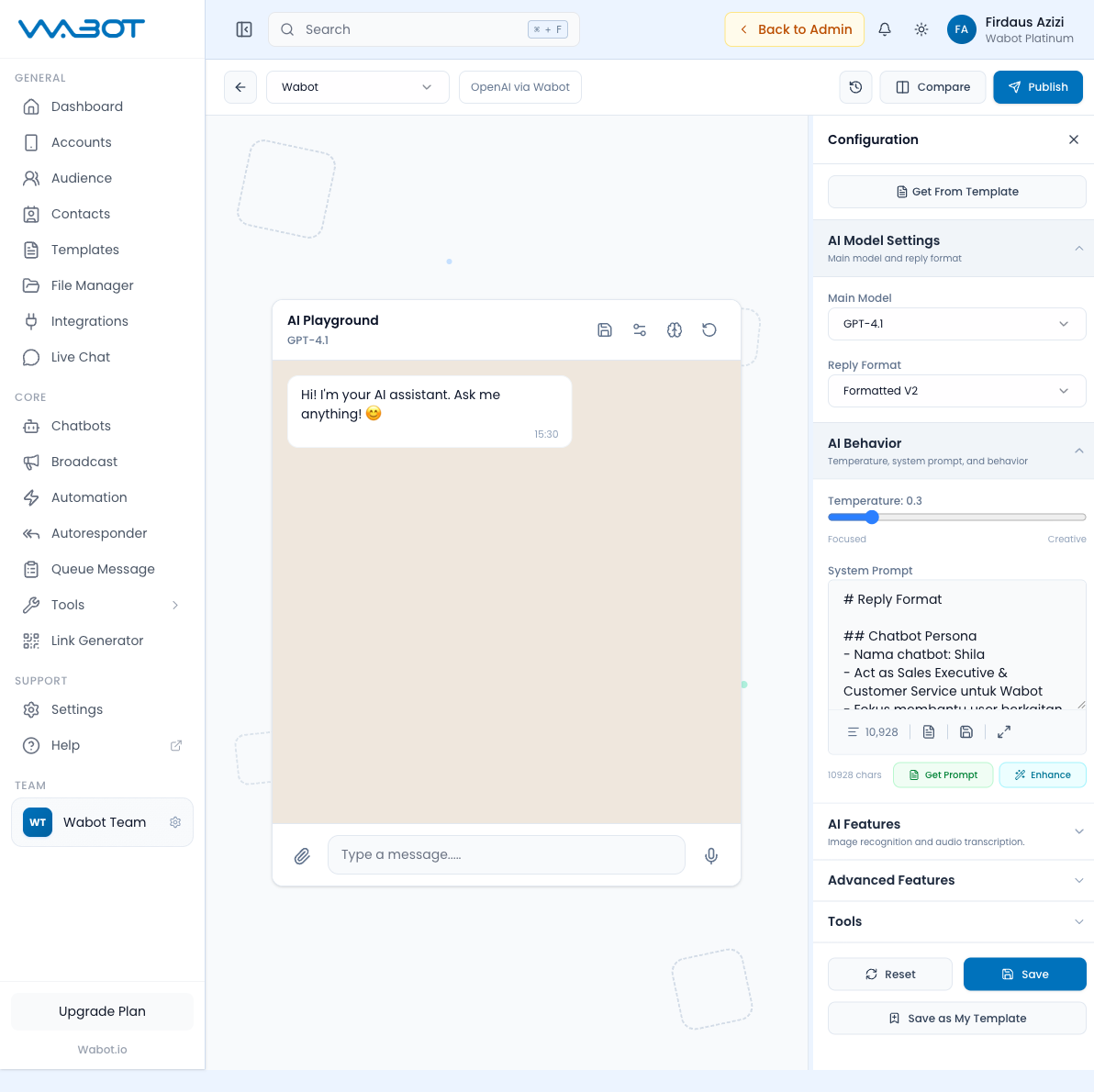
The playground provides:
- Chat Simulator (left panel) — Send test messages and see AI responses in real-time
- Configuration Panel (right panel) — Adjust AI Model Settings, AI Behavior, AI Features, Advanced Features, and Tools on the fly
- Publish — Push playground changes to the live chatbot
- Compare — Side-by-side comparison of different configurations
- Get From Template — Load pre-built chatbot templates
Widget Settings
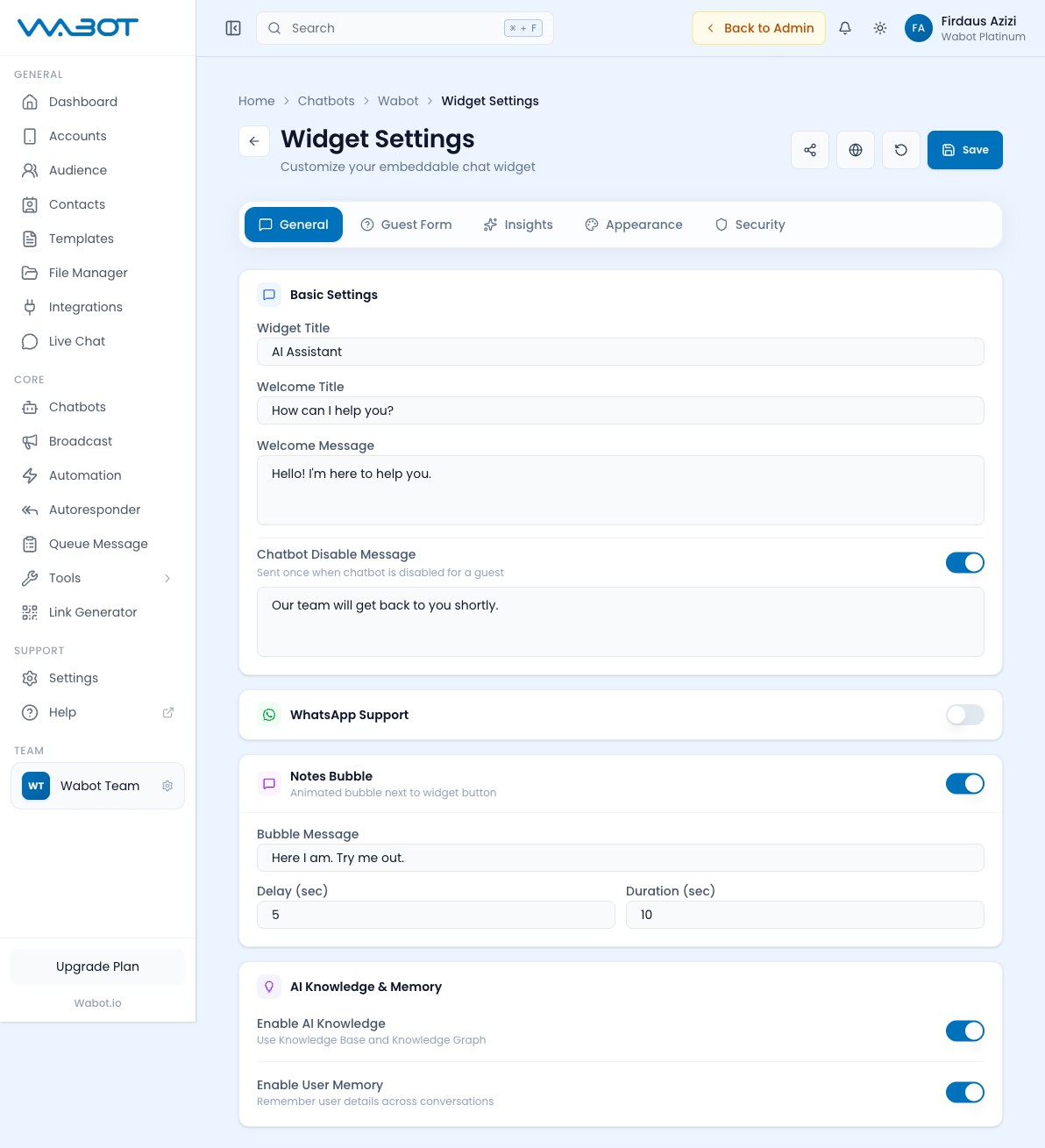
Embed a chat widget on your website that connects to your Wabot chatbot.
Deploy the Widget
After configuring the widget, click Deploy in Widget Setting. Wabot provides four deployment options:
| Option | Use it for |
|---|---|
| Add to Website | Copy an embed script and paste it into your website HTML before the closing </body> tag. |
| Open URL | Share a direct hosted WebChat link without editing your website code. |
| Popup Link | Open the WebChat as a modal popup from your own button or link. |
| Customize URL | Edit the public widget URL slug before sharing or embedding it. |
For a normal website widget, use Deploy → Add to Website and paste the script before </body>:
<script src="https://app.wabot.io/api/widget/{instanceId}/embed" async></script>
- General
- Guest Form
- Insights
- Appearance
- Security
- Widget Title — Name shown in the widget header
- Welcome Title — Greeting title for new visitors
- Welcome Message — First message displayed
- Chatbot Disable Message — Shown when bot is disabled
- WhatsApp Support — Link to WhatsApp for fallback
- Notes Bubble — Animated bubble next to widget button with custom message, delay, and duration
- AI Knowledge & Memory — Enable/disable knowledge base and user memory for widget
Collect visitor information before starting the chat (name, email, phone).
Analytics for widget usage and conversations.
Customize colors, position, size, and branding of the widget.
Domain whitelisting and access controls.
Follow-Up Center
Monitor and manage AI-generated follow-up messages.
Open Audience Hub → Follow-Up Center (/dashboard/contacts/follow-ups). Choose an account, then use the search, type, status, and date filters to find the relevant record.
- Follow-up Messages
- Follow-Up Decisions
View all scheduled and sent follow-up messages:
| Column | Description |
|---|---|
| Contact | Recipient name and phone number |
| Type | AI-generated or manual |
| Content | The follow-up message text |
| Schedule Details | Scheduled time, delay, active days, and time window |
| Status | Sent, Pending, or Cancelled |
| Created / Updated | Timestamps |
View AI decisions about when and why to send follow-ups.
Creating a Chatbot Item
- In the Chatbot Instance page, click New Chatbot.
- Fill in the details:
- Name — e.g. "Sales Assistant", "Reply STOP"
- Keyword — Trigger words, or
__default__for catch-all - Match Type — Contains keyword, Exact match, etc.
- Response — Text, media, or AI-generated reply
- Priority — Lower number = higher priority
- Next Step — Chain to another chatbot item
- Toggle Status to enable.
Training with Knowledge Files
Upload documents to train your chatbot's knowledge base:
| Format | Use Case |
|---|---|
| Product catalogs, brochures, manuals | |
| XLSX | Feature lists, pricing tables, FAQs |
| DOCX | Company policies, guides |
| TXT | Plain text FAQ lists |
Each document is processed into:
- Base — Standard text extraction (Ready when processed)
- Graph — Knowledge graph for relationship-based queries (Ready/Not Available)
Files count toward your Storage quota shown on the Dashboard.
AI Credits Usage
Each chatbot response consumes AI credits from your monthly quota:
| Plan | AI Credits / Month |
|---|---|
| Lite | — (not included) |
| Basic | — (not included) |
| Plus | 3,000 |
| Premier | 10,000 |
| Platinum | 50,000 |
If you run out:
- Purchase additional credits from Dashboard → AI Credits card
- Upgrade your plan
- Enable Advance credits (overdraft, charged separately)
Handover to Human Agent
When a conversation needs human attention:
- The bot detects a handover trigger (keyword, low confidence, or custom transfer condition).
- The conversation is forwarded to the configured Human Agent WhatsApp Numbers.
- Optionally, the chatbot is temporarily disabled for that thread.
- Pending follow-ups are cancelled (if configured).
- Your team member handles the conversation in Live Chat.
- Re-enable the bot anytime by clicking Hand Back to Bot or when the disable duration expires.
See also: Live Chat · Automation · Templates