Templates
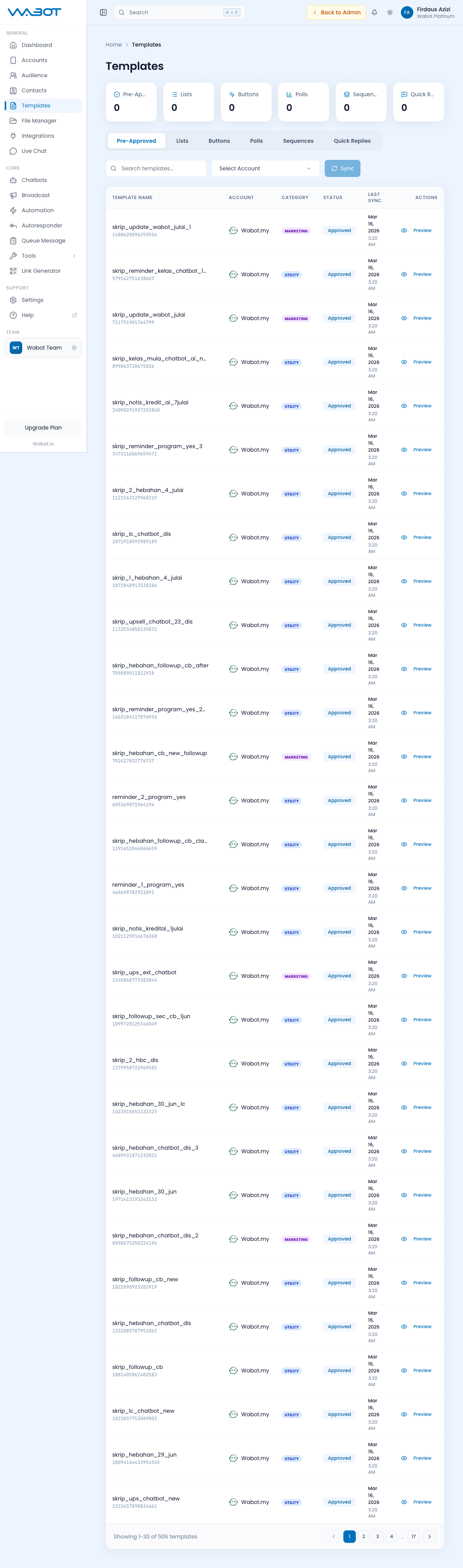
Templates are reusable message components that save you time and enforce consistency. Wabot supports six template types, each for a different use case.
Where to Find It
Sidebar → GENERAL → Templates — https://app.wabot.io/dashboard/templates
The Six Template Types
At the top of the Templates page, you see six cards with counts:
| Tab | Purpose | Available For |
|---|---|---|
| Pre-Approved | WABA templates synced from Meta | Official API account |
| Lists | Interactive list messages (customer picks from a list) | When enabled for your workspace/account |
| Buttons | Interactive button messages | When enabled for your workspace/account |
| Polls | Multiple-choice polls | When enabled for your workspace/account |
| Sequences | Ordered multi-message templates | When enabled for your workspace/account |
| Quick Replies | Reusable agent replies | When enabled for your workspace/account |
Click a tab to switch views.
Create and Maintain Any Template
The exact fields vary by type, but the working pattern is the same:
- Open the matching template tab.
- Click the create action, such as New List, New Button, New Poll, New Sequence, or New Quick Reply.
- Give the template a descriptive internal name.
- Add the message content and the required interactive items or media.
- Use the preview to check text, buttons, list rows, poll options, or sequence steps.
- Save the template.
- Test it with a controlled account before adding it to a chatbot, automation, Live Chat response, or broadcast.
Use the controls exposed for that tab to preview, edit, or remove a template. Do not remove a template that is currently used by an active automation or chatbot until you have replaced that dependency.
Template tabs are shown only when your role has access to that template type. Creation and editing require write access; removal requires delete access.
Pre-Approved Templates (Official API only)
If you use the Official WhatsApp Business API, Meta requires you to pre-register message templates before you can send marketing messages. Wabot syncs these from your WABA.
How to sync:
- Go to Templates → Pre-Approved tab.
- In the Select Account dropdown, pick your Official API account.
- Click Sync.
- Wabot fetches the templates and their current status from Meta.
- Use the account filter, status, and preview to confirm the required template is available before selecting it in a message workflow.
Template creation happens in Meta Business Manager, not in Wabot. Wabot only syncs templates that Meta has already approved. Once approved, they become available here.
Lists
Interactive list messages let customers tap a button and pick from a menu. Great for product catalogs, service menus, and multi-option replies.
Structure:
- Header (optional text)
- Body text
- Footer text (optional)
- Button label (e.g. "View Menu")
- Sections — group your options:
- Section title (e.g. "Main Dishes")
- Items — each with title, description, and unique ID
How to create:
- Templates → Lists → New List.
- Fill in header, body, and button label.
- Add sections and items.
- Save and use in Chatbots, Autoresponder replies, or Broadcasts. Existing V3 Automations can also use supported templates.
Buttons
Quick-reply button messages show 1–3 clickable buttons.
Structure:
- Body text
- Footer (optional)
- Buttons (1–3):
- Label (what the button says)
- Reply payload (what gets sent back when tapped)
Use cases:
- "Yes / No / Maybe" confirmations
- "Track Order / Contact Us / FAQ" menu
- "Book Now / Learn More" CTA
How to create:
- Open Templates → Buttons → New Button.
- Add the message body and optional header, footer, or media.
- Add up to three buttons and choose their action, such as quick reply, URL, call, or copy code where available.
- Preview the message and save it.
Polls
Multiple-choice polls let customers vote on options. Great for feedback, event RSVPs, and product preferences.
How to create:
- Templates → Polls → New Poll.
- Enter the question (e.g. "Which flavor do you prefer?").
- Add options (Chocolate, Vanilla, Strawberry, Matcha).
- Choose single-select or multi-select.
- Save and send via Broadcast, or an existing V3 Automation.
Add no more than 12 options. Test the poll with a controlled recipient before adding it to a workflow.
Sequences
Sequences are pre-built multi-step drip campaigns. Think of them as mini-automations you can attach to any trigger.
Example — 5-day onboarding sequence:
- Day 0: "Welcome! Here's your first tip."
- Day 1: "Tip #2 — did you try the feature from yesterday?"
- Day 3: "Case study — how a customer doubled sales."
- Day 5: "Special offer — 20% off for new subscribers."
- Day 7: "Last chance + testimonial."
How to create:
- Templates → Sequences → New Sequence.
- Name it (e.g. "Onboarding Drip").
- Add the message steps.
- Reorder, duplicate, or remove steps until the sequence is correct.
- Save.
- Attach the sequence only where the relevant workflow exposes it.
Quick Replies
Quick Replies are canned responses for human agents in Live Chat. Unlike the other template types, these are never sent automatically — they're inserted manually by agents.
Example quick replies:
- greeting → "Hi! Thanks for contacting us. How can I help?"
- pricing → "Our plans start at RM30/month. Full pricing at wabot.io/#pricing."
- bank → "Please transfer to Maybank 1234-5678-9012 (Team Fames Sdn Bhd). Send receipt here."
- delivery → "Your order will arrive within 3–5 working days via J&T Express."
How to use in Live Chat:
- In any conversation, type
/in the message box. - A list of quick replies appears — search by name.
- Click one to insert.
- Edit if needed, then send.
To create one, go to Templates → Quick Replies → New Quick Reply, add an internal shortcut/name and message content, preview it, then save.
Organizing Your Templates
Best practices:
- Name them clearly — "Greeting — Day Shift" not "Template 1"
- Group by purpose — sales, support, onboarding, offboarding
- Review quarterly — delete obsolete ones, update pricing/dates
- Translate — create Bahasa Melayu and English versions for bilingual teams
See also: Broadcast · Live Chat · Automation