Dashboard Tour
Once you log in, you land on the Dashboard at https://app.wabot.io/dashboard. This page gives you a snapshot of your account and a step-by-step onboarding wizard.
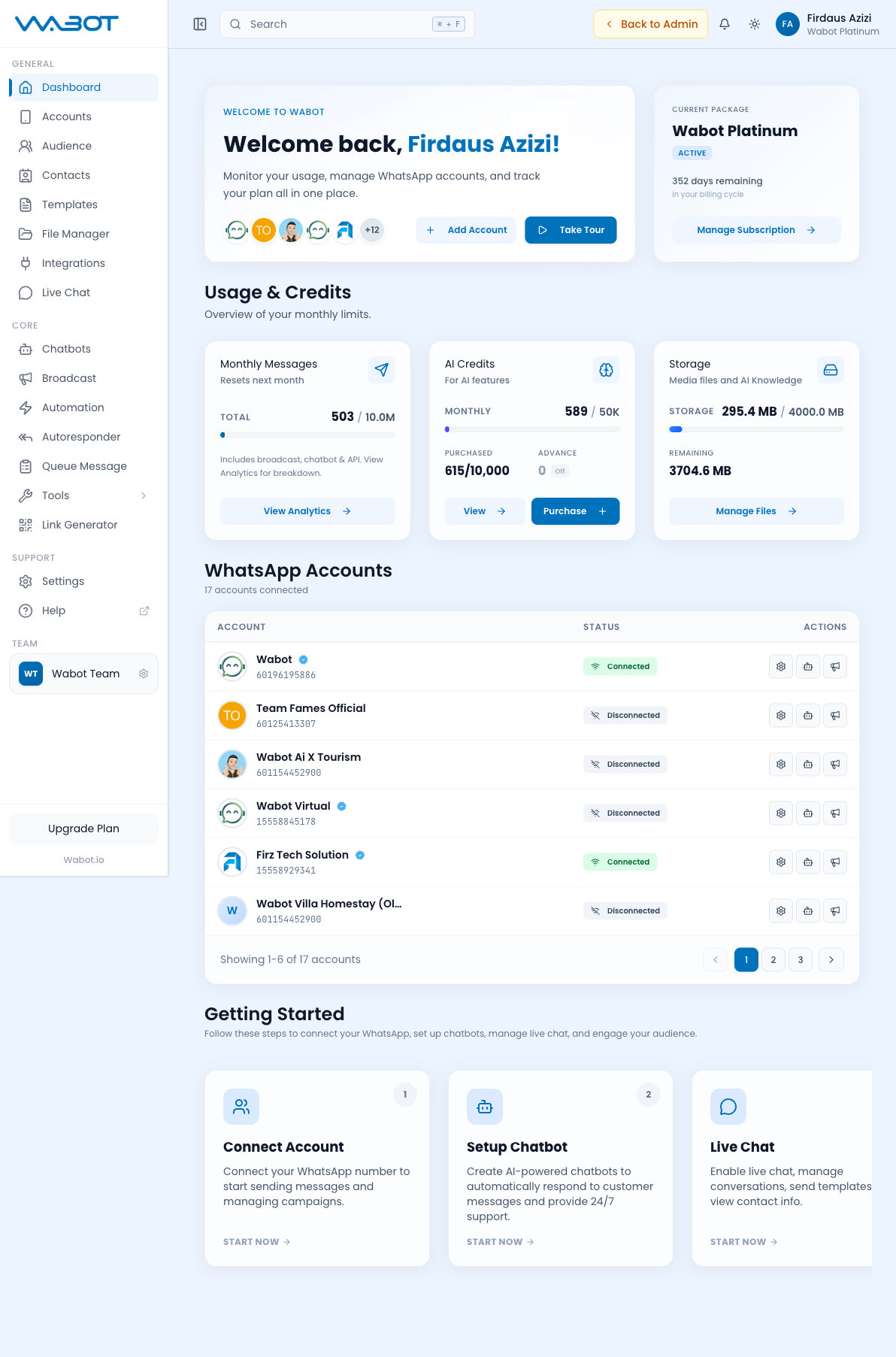
Dashboard Overview
The dashboard combines account and activity information:
- Your current plan and a Manage subscription action
- An AI credits indicator with a Buy Credits action
- Message Activity, Subscriber Growth, and Subscriber Breakdown charts
- Connected WhatsApp account cards and a View all link
- Recent Activity and a link to the full activity view
- Full Analytics for a broader account summary
Use the figures to identify changes in delivery, replies, subscriber growth, or chatbot activity before changing a campaign or bot configuration.
Usage & Credits
The header and dashboard cards monitor your operational quotas:
Monthly Messages
- Shows how many messages used vs your plan's total (e.g.
1 / 10.0M) - Includes broadcast, chatbot, and API sends
- View Analytics button for a detailed breakdown
AI Credits
- Monthly allowance (e.g.
1 / 50K) - Purchased top-ups
- Advance credits (on/off)
- View and Purchase buttons
Storage
- Space used for media files and AI Knowledge
- View and manage files from File Manager
Sidebar Navigation
The left sidebar is organized into GENERAL, CORE, and SUPPORT groups. Items are shown according to your plan and team permissions.
GENERAL
| Item | What it does |
|---|---|
| Dashboard | The main overview page |
| Accounts | Manage WhatsApp accounts (connect new numbers) |
| Audience Hub | People, Follow-Up Center, analytics, broadcast lists, labels, and WhatsApp groups |
| Templates | Pre-approved, lists, buttons, polls, sequences, quick replies |
| File Manager | Media files and AI knowledge storage |
| Integrations | Google Sheets, WordPress, Pabbly, Make, Funnelkit, etc. |
| Live Chat | Shared team inbox for WhatsApp conversations |
CORE
| Item | What it does |
|---|---|
| Chatbots | AI-powered chatbot builder |
| Broadcast | Bulk campaigns to lists |
| Automation | Coming Soon in V4. Continue existing automation workflows in V3. |
| Autoresponder | Keyword-based auto-replies |
| Queue Message | Monitor queued/scheduled messages |
| Link Generator | Create click-to-chat links and QR codes, when your plan and permission allow access. |
| REST API | API console, access token, and account-specific samples |
| Tools | Sidebar destination currently returns 404. Use Caption and OAuth & MCP from their direct Settings/REST API routes. |
SUPPORT
| Item | What it does |
|---|---|
| Settings | Account & notification settings |
| Account Error Logs | Owner-only view of account-facing failures and safe technical details |
| Help | Sidebar destination currently returns 404. |
ADMIN (for team owners)
| Item | What it does |
|---|---|
| Users | Manage team members and roles |
| Admin Tools | Persona templates and admin utilities |
| Membership | Billing and plan management |
| Settings | Admin-level settings |
TEAM
- Shows the active team. Click to switch teams if you belong to more than one.
Suggested First Setup
For a new team, use this order:
- Accounts — connect and verify a WhatsApp account.
- Audience Hub — create a small test Broadcast List and add a controlled test number.
- Templates and File Manager — prepare reusable copy and media.
- Chatbots or Autoresponder — configure the first automatic response.
- Live Chat — confirm the team can respond to test conversations.
- Broadcast — send a small opt-in test campaign.
- Integrations — add external workflows only after the basic message flow works. Use existing V3 Automation only where applicable.
Top Right Header
- Search (⌘+K)
- Notifications
- Toggle theme (light/dark)
- Profile menu — shows your name and current plan