Autoresponder
Autoresponder configures a default automatic reply for each WhatsApp account. It supports reply targeting, text or media, Normal or AI Reply mode, exclusions, and optional lead-management actions.
Website accounts are not selectable for Autoresponder. Creating or updating a reply requires Autoresponder write permission.
Where to Find It
Sidebar → CORE → Autoresponder — https://app.wabot.io/dashboard/autoresponder
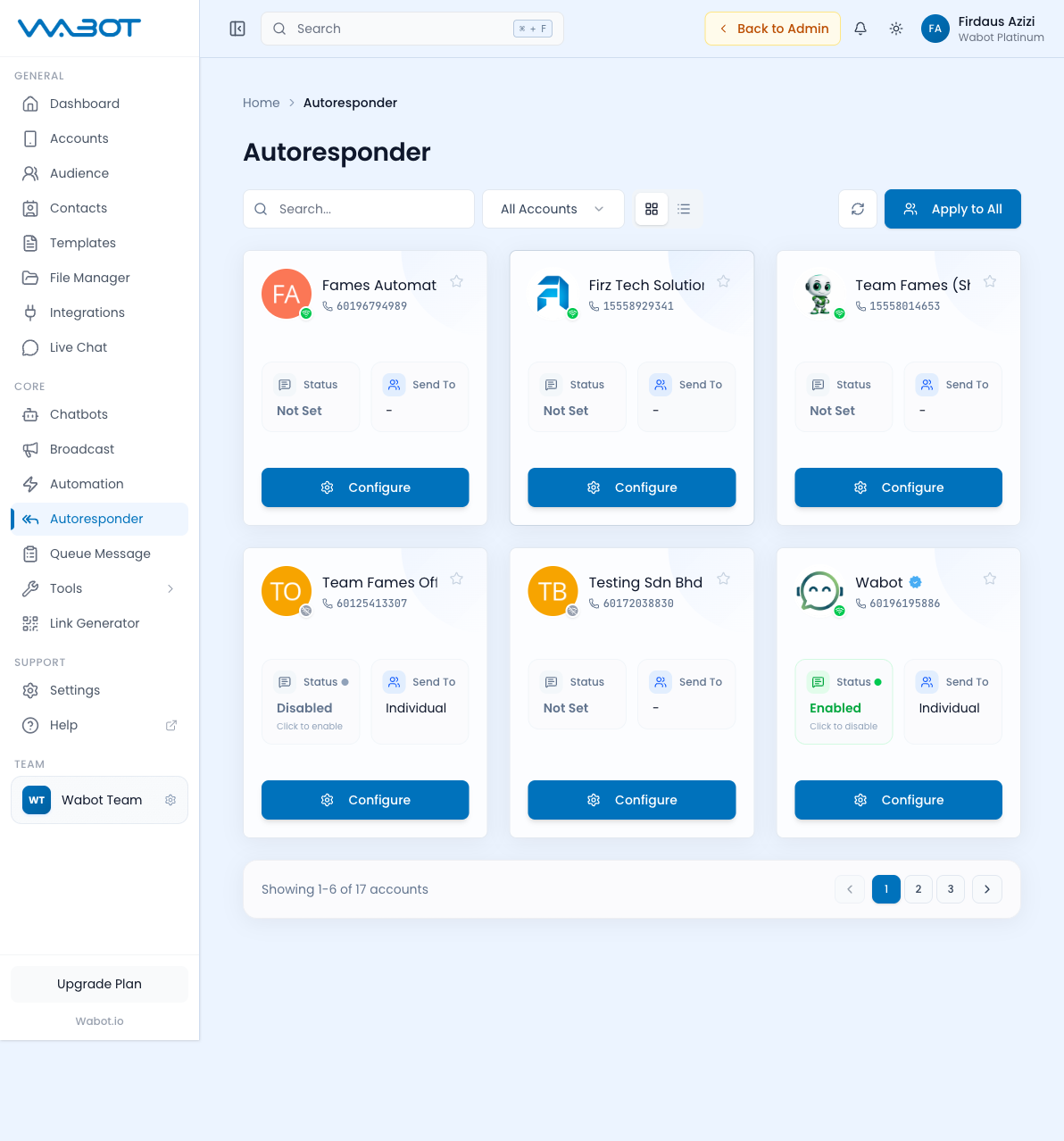
Configure an Account
- Open Autoresponder and find the relevant account.
- Click Configure.
- Choose Enable or Disable.
- Choose who can receive the reply:
- All — all eligible conversations.
- Individual — individual chats only.
- Group — group chats only.
- Choose Text & Media, then write the reply message.
- Add media from File manager, Upload, or Add via URL if required.
- Choose a reply mode:
- Normal Mode sends the saved reply.
- AI Reply Mode uses the account's AI configuration when available.
- Add numbers that must not receive the reply in Excluded Phone Numbers.
- Configure optional lead-management, forwarding, webhook, or contact-group settings for the workflow.
- Click Save.
Apply One Setup to Multiple Accounts
- Return to the Autoresponder page.
- Click Apply to All.
- Review the configuration and target accounts.
- Apply it only when the same reply is suitable for every selected account.
- Open any exception account and configure it individually.
Create a Keyword Autoresponder
The Default Reply is account-level. Use a keyword autoresponder when the reply must depend on text the customer sends.
- Open Autoresponder and create a responder.
- Select a WhatsApp account, or choose All accounts when that option is appropriate.
- Enter an internal name and one or more keywords.
- Choose the match method:
- Contains
- Exact match
- Regular expression
- Compose the response text and optional media.
- Set a delay from 0 to 3,600 seconds.
- Save and test using a controlled conversation.
Keyword responders can be edited or deleted from their own pages. Do not use a regular expression unless it has been tested carefully, because a broad pattern can trigger unexpected replies.
Common Default Replies
Greeting
Hi! Selamat datang ke {store_name}.
Saya boleh bantu anda dengan produk, harga, lokasi, atau sambungan kepada admin.
Pricing
Attach a current price-list PDF or image, then add a short explanation of how the customer can order.
Office Hours
Waktu operasi kami:
Isnin–Jumaat: 9 pagi – 6 petang
Sabtu: 9 pagi – 1 petang
Ahad: Tutup
Opt-out Confirmation
Anda telah berhenti melanggan. Anda tidak akan menerima mesej promosi lagi. Terima kasih.
Add the person to an unsubscribed label or Broadcast List exclusion after the conversation is handled.
Autoresponder vs Chatbot
| Feature | Autoresponder | Chatbot |
|---|---|---|
| Logic | Saved default reply or AI Reply mode | AI conversation with persona and knowledge |
| Cost | No AI credits in Normal Mode | Uses AI credits |
| Best for | Greeting, availability, routing | Contextual support and sales |
| Setup | Per-account default configuration | Persona, knowledge, tools, and testing |
Test Before Enabling
- Configure one account first.
- Send a controlled test message from another phone.
- Confirm the reply text, media, audience targeting, AI mode, exclusions, and any forwarding behavior.
- Check the resulting conversation in Live Chat.
- Apply the configuration to other accounts only after the test is correct.
See also: Chatbots · Live Chat · Automation