Live Chat
Sending messages requires the appropriate conversation permission. Other contact actions, such as notes, scheduling, labels, groups, and contact edits, can be restricted independently.
Live Chat is Wabot's shared team inbox — a unified view of every WhatsApp conversation across all your connected accounts. Multiple agents can reply, take over from the AI, tag chats, and use canned responses.
Where to Find It
Sidebar → GENERAL → Live Chat — https://app.wabot.io/dashboard/live-chat
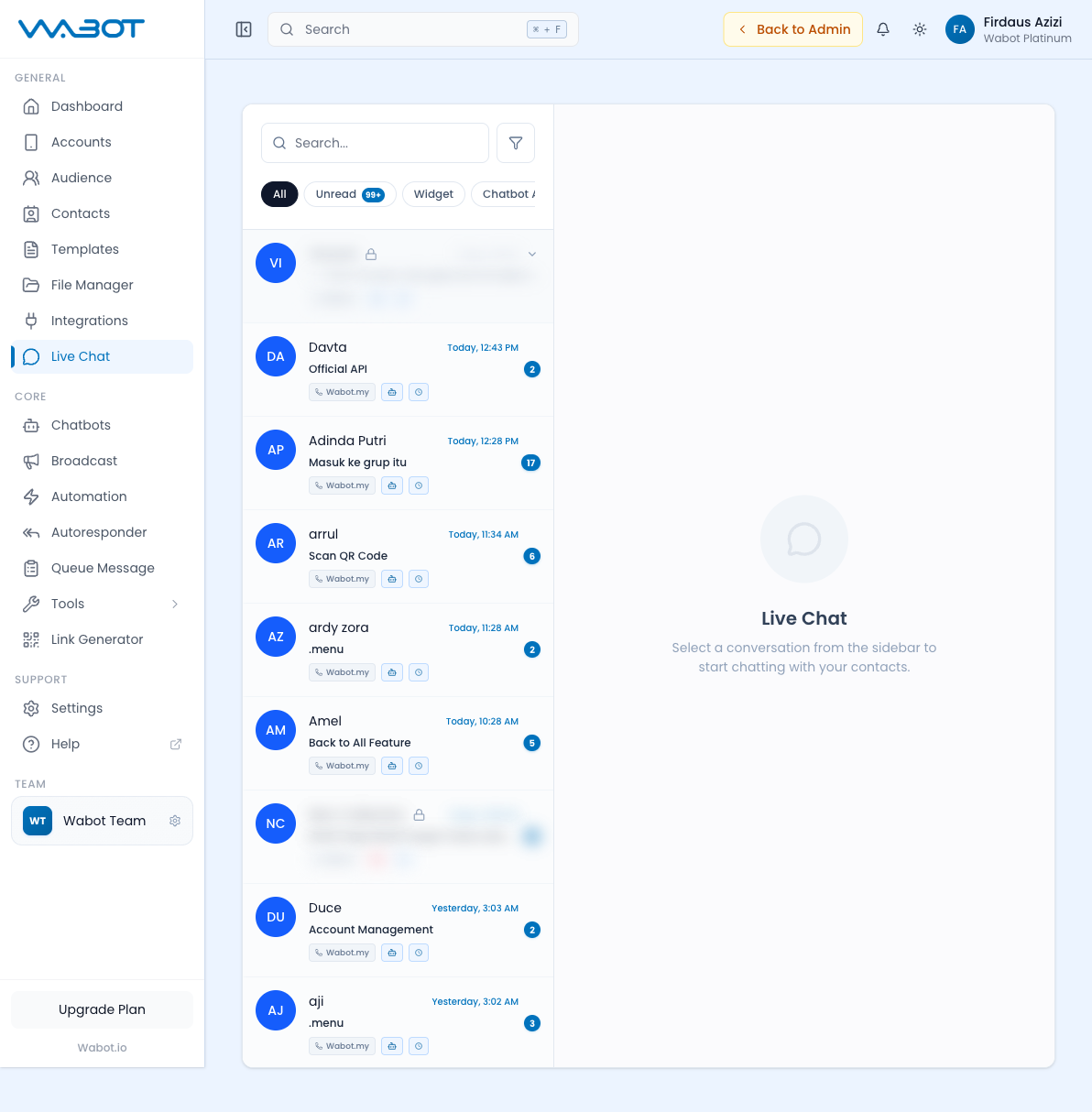
Page Layout
When you open Live Chat, you see:
- Left sidebar — conversation list with filters
- Main panel — the selected conversation thread
- Right sidebar (optional) — contact info, tags, notes
On an empty account, you'll see: "No conversations found — Select a conversation from the sidebar to start chatting with your contacts."
Conversation Filters
At the top of the conversation list, you can filter by:
| Filter | What it shows |
|---|---|
| All | Every conversation across all accounts |
| Unread | New messages you haven't seen |
| Archived | Old conversations you've archived |
Use Filters to additionally narrow the inbox by conversation status, account, source, website, or priority. Use Reset to clear active filters.
Replying to a Conversation
- Click a thread in the conversation list.
- The message history loads in the main panel (same thread the customer sees on WhatsApp).
- Type your reply in the text box at the bottom.
- Attach media (image, video, PDF, voice note) via the paperclip icon.
- Press Enter or click Send.
The message goes out via the connected WhatsApp account — the customer sees it come from your business number, not from "Wabot".
Work the Inbox Efficiently
- Start with Unread and assign or prioritise conversations that need a human response.
- Use search and filters to locate a contact, account, label, group, widget conversation, or AI state.
- Open the conversation and check the contact information panel before replying.
- Check the Official API 24-hour customer-service window when it applies. Use an approved template when a normal free-form reply is not permitted.
- Use Archive only after the outcome is recorded. A new customer reply can return the conversation to active work.
Key Actions per Conversation
- Take Over from Bot
- Assign to Teammate
- Add Tags / Labels
- Use Quick Replies
- Mark as Resolved
- Add Note
If a chatbot is handling the thread and you want to step in:
- Use the chatbot control to temporarily disable the chatbot for the conversation.
- The AI stops responding for this thread.
- Reply manually.
- Re-enable the chatbot when the conversation should return to AI handling.
Prevent two agents from replying over each other:
- Click Assign in the conversation header.
- Pick a teammate.
- The thread is now owned by them (others see a lock icon).
Categorize conversations for reporting and filtering:
- Click Tags (or the label icon).
- Select or create a label:
new lead,VIP,pricing,support,closed. - Labels carry over to automations and segments.
Insert pre-saved canned responses:
- Click the Quick Replies icon or type
/in the message box. - Browse your saved templates (from Templates → Quick Replies).
- Click one to insert — edit if needed, then send.
Close a conversation when the customer's issue is solved:
- Archive the conversation.
- The thread moves to the Archived filter.
- Re-opens automatically if the customer replies again.
Internal notes only your team sees (not sent to the customer):
- Click Notes in the right sidebar.
- Type context: "Customer asked about refund on order #1234. Awaiting approval from finance."
- Save. Other agents see this next time they open the thread.
Schedule a Reply or Add an Internal Message
When the conversation controls are available:
- Open the selected conversation.
- Choose the schedule control to prepare a reply for a future time, then verify the recipient, message, timezone, and schedule.
- Use the internal-message control for notes that should be visible to your team but never sent to the customer.
- Review scheduled and queued work in Queue Message or the conversation panel before changing a campaign or account status.
Message Delivery and Attachments
- Attach images, video, documents, or audio from your device or File Manager.
- Watch message status indicators to distinguish pending, sent, delivered, read, and failed messages.
- If a message fails, check the account connection, recipient format, permitted message type, and Account Error Logs before resending.
The Right Sidebar — Contact Info
When you click a conversation, the right sidebar shows:
- Name & phone number
- Profile picture (from WhatsApp)
- Labels currently applied
- Groups the contact is in
- Custom fields (email, company, order history)
- Last seen
- Conversation history across all accounts
- Notes (internal team notes)
You can edit contact info here — changes save to Contacts.
Team Workflow Example
A typical customer-service setup:
- Morning standup — team checks Unread filter, triages by urgency.
- Auto-assignment rules — support team handles tags
support,bug; sales handlespricing,inquiry. - Bot handoff — AI handles after-hours; humans take over from 9am.
- Resolution — once resolved, mark as closed and add outcome tag (
won,lost,no-response). - Evening review — check Chatbot Active to verify AI is doing well; add to training if gaps found.
Mobile App
You can do all of this from your phone too:
- iOS: App Store
- Android: Google Play
Same inbox, push notifications for new messages, hand-off control on the go.