Audience Hub
If the workspace shows Access Restricted, ask an owner to grant the required contact permission. Subscriber Analytics, Labels, and WhatsApp Groups can each be restricted separately.
People, Analytics, and Broadcast Lists require subscriber or CRM access. Follow-Up Center requires chatbot access, Labels require label access, and Groups require participant-export access.
Audience Hub is the contact-management workspace for chatbot subscribers, follow-ups, audience segments, WhatsApp labels, and WhatsApp groups.
Where to Find It
Sidebar → GENERAL → Audience Hub — https://app.wabot.io/dashboard/contacts
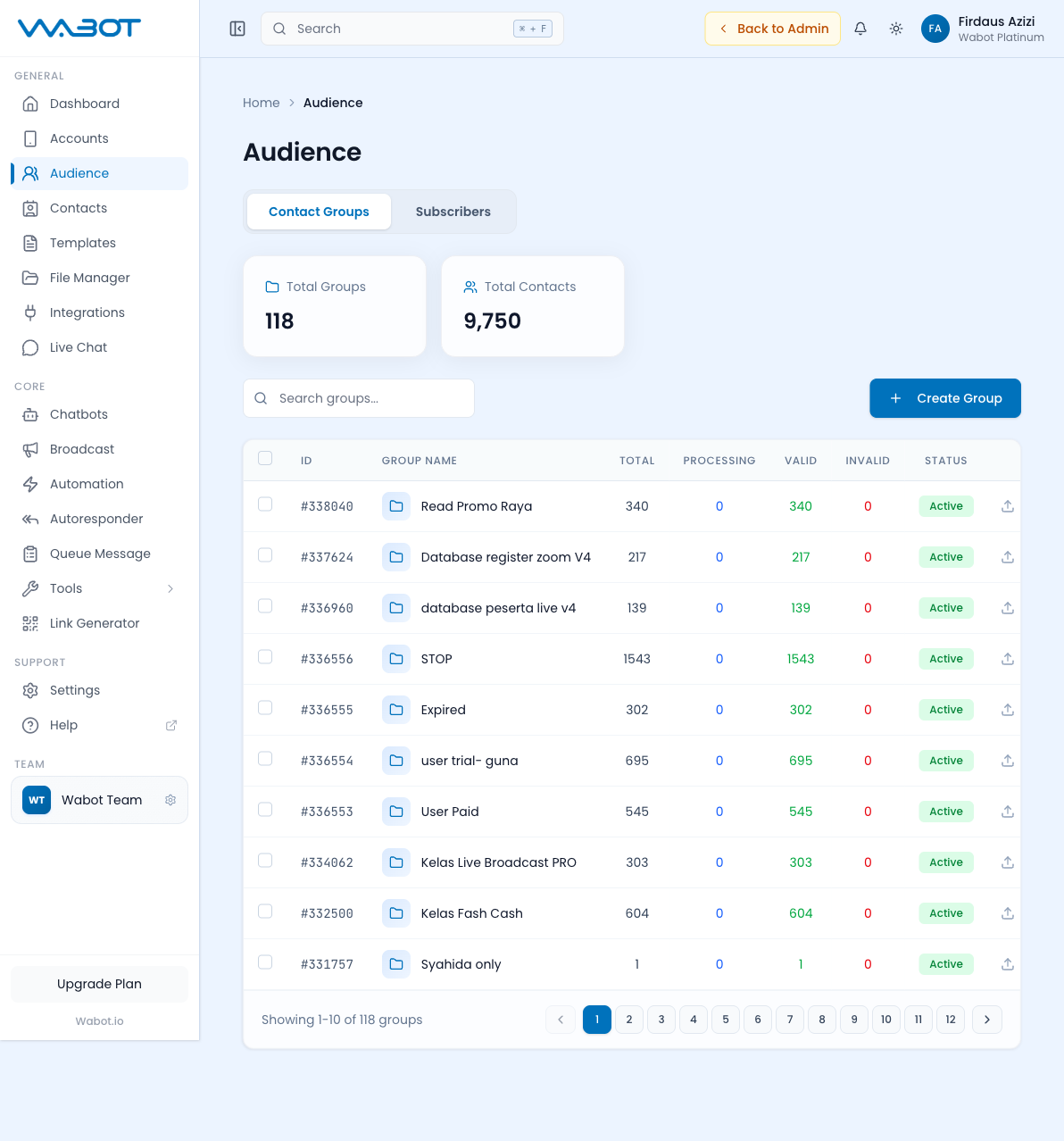
Audience Hub Sections
| Section | Use it for |
|---|---|
| People | Browse CRM contacts and chatbot subscribers, update profiles, apply labels, and control chatbot access |
| Follow-Up Center | Review scheduled messages and the AI follow-up decisions behind them |
| Analytics | Review subscriber and audience trends |
| Broadcast Lists | Build validated recipient lists for broadcast campaigns |
| Labels | Manage WhatsApp labels used in filtering, Live Chat, and automation |
| Groups | View WhatsApp groups available to connected accounts |
Work with People
- Open Audience Hub → People.
- Choose the available Subscribers or Contacts view, then select an account when prompted.
- Search by name or phone number, or use filters for activity, labels, chatbot state, source, or date.
- Click a person to review their profile, history, labels, and custom fields.
- Use bulk actions only after confirming the selected people. Depending on your permissions and view, you can enable or disable chatbot access, export results, or delete selected people.
Use labels for operational states, such as new-lead, paid, or unsubscribed. Use Broadcast Lists for a campaign's recipient set. This keeps automations and reporting easier to understand.
Create a Broadcast List
- Open Audience Hub → Broadcast Lists.
- Click Create List.
- Enter a List Name (e.g. "March Promo List").
- Choose how to add contacts:
- File import
- Paste phone numbers
- Single entry
- On the list detail page, import from WhatsApp groups, CRM contacts, or subscribers when those sources are available.
- Save, then open the list to add or remove contacts, edit its name/description/active state, export CSV, and revalidate numbers.
Use the contact-status filter to review Unvalidated, Valid, and Invalid numbers. Validation requires a connected Unofficial API account. Unvalidated entries can still be eligible for a broadcast, so do not interpret them as failed validation.
Deleting a Broadcast List permanently removes the list and its contacts. Delete Invalid and individual contact deletion are also destructive.
Manage Follow-Ups
- Open Audience Hub → Follow-Up Center.
- Review the Follow-up Messages tab. It shows the contact, type, message, planned schedule, status, created time, and execution time.
- Use All Types, All Status, created-date, account, and contact filters to narrow the list.
- Review the message content, schedule, and outcome before editing a pending follow-up.
- Open Follow-Up Decisions to see the AI's result, follow-up mode, what it noticed, model, and created time. Search by contact or filter by decision result.
- Use deletion controls only after confirming that the follow-up or decision record is no longer required.
Review Audience Analytics
- Open Audience Hub → Analytics.
- Select the relevant account and time range: 7d, 30d, 90d, or All.
- Choose Day, Week, or Month for the chart granularity.
- Review subscriber growth, acquisition, engagement, and re-engagement metrics.
- Use Refresh analytics after a material change when you need current data.
- Compare a trend with the original campaign or automation before changing production rules.
Use Labels and WhatsApp Groups
Labels
- Open Audience Hub → Labels.
- Select an account, then choose a label.
- Search, filter by date, sort, or export the people associated with that label.
- Use Sync only when your role includes label-sync access.
- Apply or remove the label from People or Live Chat as appropriate.
Labels can filter views and trigger label-based automations.
WhatsApp Groups
- Open Audience Hub → Groups.
- Select an account when prompted.
- Use the All Groups and All Time filters to narrow the group list.
- Use View group details to review the group, its participants, and participant roles.
- Export group or participant information only when your team is authorized to use it.
These are WhatsApp conversation groups, not Broadcast Lists.
Using Groups in Broadcasts
- Include Lists — pick one or more Broadcast Lists to send to
- Exclude Lists — optionally exclude specific lists (e.g. "Unsubscribed")
This lets you target precisely. For example: include "All Customers" but exclude an "Unsubscribed" list.
Best Practices
- Name lists descriptively: date, campaign, source (e.g. "Webinar 21 Nov 2024", "Website Leads Jan")
- Clean up invalid contacts periodically
- Create an Unsubscribed list and always exclude it from broadcasts
- Use Segmented Subscriber for dynamic targeting based on behavior