Queue Message
View and manage queued, scheduled, sent, and failed messages across your accounts.
Deleting queue messages or retrying failed messages requires Queue delete permission.
Where to Find It
Sidebar → CORE → Queue Message — https://app.wabot.io/dashboard/queue
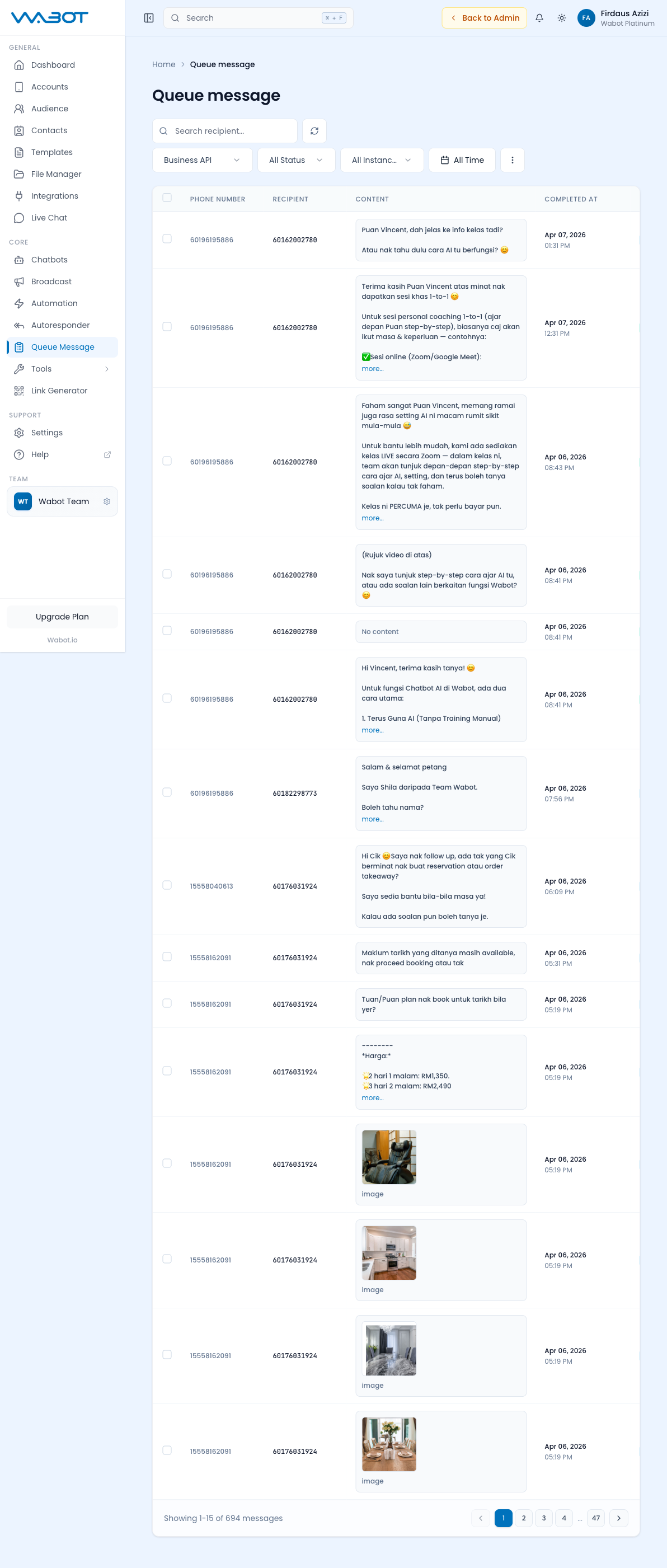
Filters
At the top of the page:
- Account type — Business API or Non Official
- All Status — Pending, Sending, Sent, Failed
- Account — filter by connected WhatsApp account
- All Time — date range filter
- Recipient search — find a queued message by recipient
What You See
A table listing queued work with its account, recipient, content or type, status, scheduled time, and available error information. Use View details to inspect a message before acting on it.
On a fresh account: "No queue messages found — Try adjusting your filters or check back later."
Use Cases
- Debug failed sends — filter by "Failed" to see why messages didn't go through
- Check scheduled broadcasts — verify upcoming dispatch times
- Monitor send rate — see pacing in action for large broadcasts
- Remove messages that must not be processed
Delete or Retry Queue Items Safely
- Filter to the correct account, status, and date range.
- Use View details to confirm the recipient, source, and error state.
- Select the required rows, page, or filtered set.
- Use Delete Selected Items only for work that must be removed.
- Use Retry Selected Messages only for failed messages after correcting the cause.
- Refresh the queue to verify the resulting status.
- If the message came from a broadcast or automation, correct the source workflow too, otherwise it may create another queued message.
Deleting or retrying a queue item does not automatically correct the broadcast, chatbot, automation, or API request that created it. Deleting or retrying all filtered records requires an explicit confirmation phrase.
Troubleshooting
If a message is stuck in Pending too long:
- Check if the account is Online in Accounts.
- Verify the recipient number is valid and in international format.
- Check your plan's monthly quota — if exceeded, new messages queue indefinitely.
- Contact support if the issue persists.
For recurring problems, check Account Error Logs and include the account, time, status, and error details when you contact support.